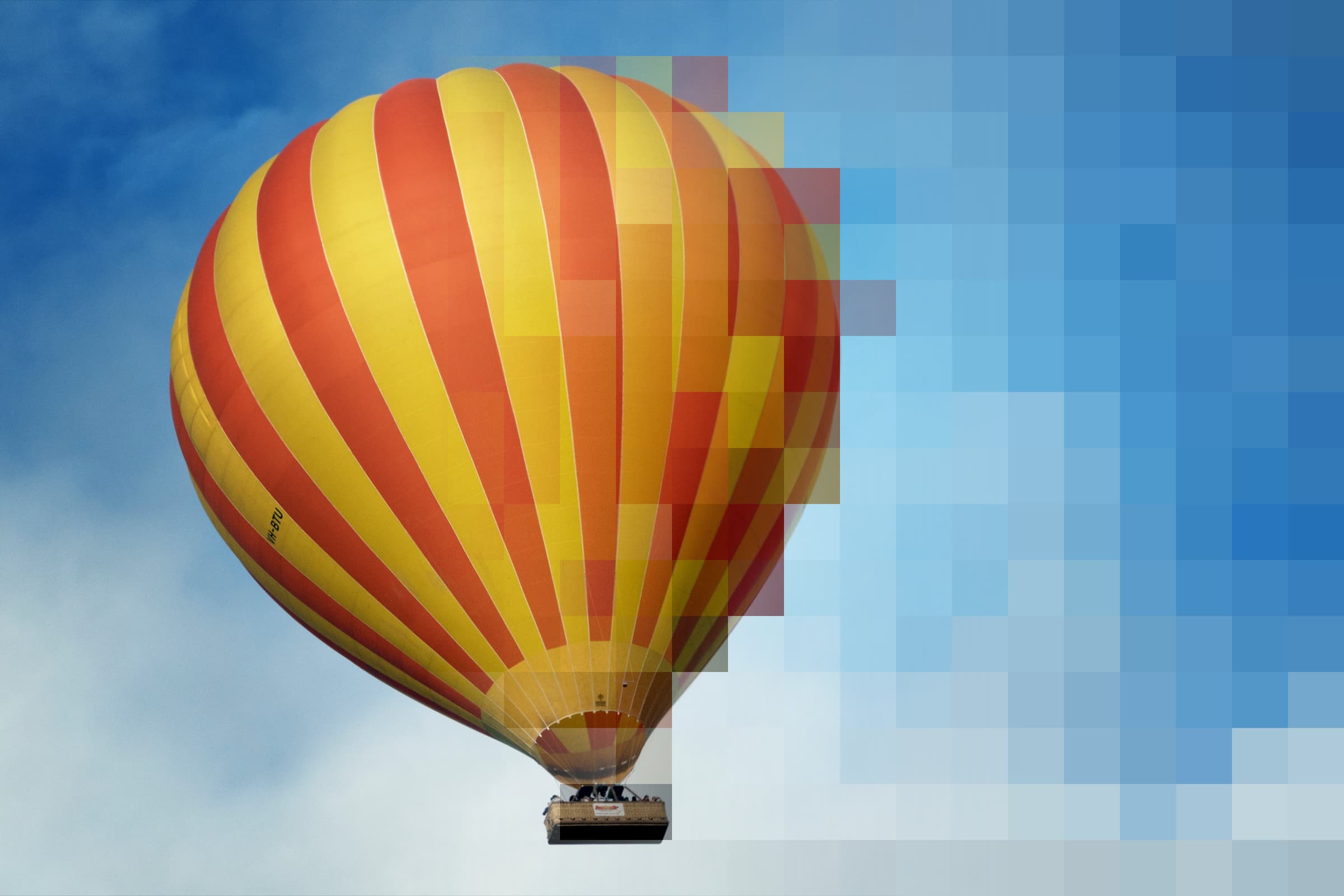
Thumbnails are reduced-size versions of pictures, used to make it easier to scan and recognize them. There are many ways to create thumbnails, usually by resizing and possibly cropping. This article covers all the options available when resizing a picture to a thumbnail. These procedures are followed by Imagevue (version 2), and mostly all other gallery applications. Also provided are a handful of example parameters to showcase the flexibility of the function parameters, and to speculate on the advantages and disadvantages of each method.

Resize function parameters:
resizetype [resizetobox, croptobox]
keepaspect [true, false]
allowscaleup [true, false]
compression [80] (0-100)
boxwidth [Number]
boxheight [Number]
Resize examples
Below are a few examples which cover most usage of thumbnail resizing or general batch image resizing. In all our examples, we display example results for both landscape- and portrait photos. Recommended methods are in bold:
Resize long size
Resize to width
Resize to height
Resize without keeping aspect
landscape crop
Square symmetric crop
Symmetric wide crop
Order viagra
Order cialis
Order cialis professional
Order viagra professional
Symmetric tall crop
Resize function parameters
resizetype
This setting decides what method to use for resizing the image in regards to the boxwidth and boxheight parameters. While resizetobox is focused on keeping the whole image intact and resizing the image inside the specified box area, croptobox is focused towards creating a specified size no matter what aspect the image is in. This is however achived by a combination of resize and crop.
resizetobox
The general idea of resizetobox, is to create an outer boundary limit that the image should fit inside of without loosing aspect or cropping any parts of the images.

croptobox
The main focus of croptobox, is to resize an image so that one dimension fits the box, while the overflow of the other dimension is cut off. The advantage of using this general method, is that all files will get the same dimensions, making them easier to align for a smother layout.


keepaspect
This setting locks the aspect ratio when resizing an image. There are very few cases where one would recommend not keeping the image aspect ratio, but to its defence, its the only way to resize a batch of images to the exact same size without cropping.
allowscaleup
This setting prevents images from scaling upwards. Generally it is recommeneded to keep this setting to false, to avoid images scaling upwards, which will cause nothing else than hugely degraded image quality. An exception may be if it is paramount that all images scale to same size, even if it means that they must scale up.
compression
Set the JPG compression ratio for a resized image. Threshold goes from 0-100, and the higher the value, the higher the quality of the image, but at the price of a bigger filesize also. We generally recommend reltive high quality settings between 75-85.
boxwidth
Sets the bounding box width for the resizing of the image.
boxheight
Sets the bounding box height for the resizing of the image.
Resize Examples
Resize long side


This approach is the most functional and balanced both for thumbnails and batch resizing large images. It creates a balanced ratio between portrait- and landscape images, and filesizes in same range. This method is the same as how most of the standard photo-applications by default batch-resize large photos. The main disadvantage with this approach when using it for thumbnails, is that a mix of landscape- and portrait images will not align smoothly since they most often neither share the same width or height.
Settings:
resizetype = resizetobox
keepaspect = true
boxwidth = 120
boxheight = 120
Methology:
By setting an identical value to both boxwidth and boxheight, the script will find the longest side (horisontal or vertical) and resize this side to the value set in boxwidth or boxheight, while keeping the smaller size in correct aspect ratio.
Examples:


Resize to width


This method creates identical width for all images, keeping aspect by regulating the height. This may cause symmetry for images that are displayed vertically(as above), but will likely result in huge size variations between landscape- and portrait aspects. As in the example above, the portrait-aspect image is much larger than the landscape-style image.
Settings:
resizetype = resizetobox
keepaspect = true
boxwidth = 100
boxheight =
Methology:
By setting boxwidth and leaving the boxheight blank, the script will resize the width of the image to match boxwidth, while resizing the height in proportion to keep the aspect.
Examples:


Resize to height


This method creates identical height for all images, keeping aspect by regulating the width. This may cause symmetry for images that are displayed horisontally(as above), but will likely result in huge size variations between landscape- and portrait aspects. As in the example above, the landscape-oriented image is much larger than the portrait-oriented image.
Settings:
resizetype = resizetobox
keepaspect = true
boxwidth =
boxheight = 100
Methology:
By setting boxheight and leaving the boxwidth blank, the script will resize the height of the image to match boxheight, while resizing the width in proportion to keep the aspect.
Examples:


Resize without keeping aspect


In this method, images are resized out of aspect to a specified boxwidth and boxheight. Generally speaking, there is nothing nice about loosing the aspect ratio of an image, so we dont recommend it. The only advantage of this approach, is that its the only way to resize all images to a specifed size without having to crop.
Settings:
resizetype = resizetobox
keepaspect = false
boxwidth = 100
boxheight = 100
Methology:
Set keepaspect to false, and simply set the required width and height through the boxwidth and boxheight parameters.
Examples:


Landscape crop

This method is perhaps the most subtle and best choice for galleries which mainly consist of landscape-oriented images. It creates all images at indentical size, which will result in smooth and aligned layout. The disadvantage is that it cuts pretty much from portrait-oriented images, but thats why its most suitable for galleries which fully or mostly consist of landscape-oriented images.
Settings:
resizetype = croptobox
keepaspect = true
boxwidth = 120
boxheight = 90
Methology:
By setting boxwidth and boxheight to reflect the general aspect ratio of your images, landscape-oriented images will scale to boxwidth and boxheight with little- or no cropping. Portrait-oriented images, will also resize to specified boxsize, but they will also be cropped to a larger degree.
Examples:


Square symmetric crop


This method is quite stylish and results in a very clean layout. Also it creates a good balance between landscape- and portrait-oriented images. In both cases, images are cropped to a certain degree as to fit in the specified box area. This may be considered a disadvantage to some, but requiring identical size for all thumbnails/images, comes at a cost.
Settings:
resizetype = croptobox
keepaspect = true
boxwidth = 100
boxheight = 100
Methology:
By setting boxwidth and boxheight to identical values, the images will resize and crop to fit inside the box area.
Examples:


Symmetric wide crop


Just to show the versatility of the function, here is an example for creating very wide image/thumbnail-resizes. This approach would surely be used to display images in a more artistic fashion. All images will resize and crop to specified size, which will result in smooth layout. This approach however will result in extreme cropping of portrait images.
Settings:
resizetype = croptobox
keepaspect = true
boxwidth = 150
boxheight = 75
Methology:
By setting a boxwidth much larger than boxheight, you will create a very wide aspect ratio. Images will resize and crop to fit inside the box area.
Examples:


Symmetric tall crop


Another example to show the versatility of the function -Here is an example for creating very tall image/thumbnail-resizes. This approach would be used to display images in a more artistic fashion. All images will resize and crop to specified size, which will result in smooth layout. This approach however will result in extreme cropping of landscape images.
Settings:
resizetype = croptobox
keepaspect = true
boxwidth = 75
boxheight = 150
Methology:
By setting a boxheight much larger than boxwidth, you will create a very tall aspect ratio. Images will resize and crop to fit inside the box area.
Examples:


If you are looking for an application that can create thumbnails from a batch of images, you can try irfanview (www.irfanview.com). Imagevue and many other gallery applications create thumbnails automatically.